
Overview of Microsoft Clarity
When I started exploring website analytics, Microsoft Clarity stood out with its promise of meaningful insight—without overwhelming me. This free tool makes web analytics accessible for everyone, even if you are not a data expert. With Microsoft Clarity, I found a bright dashboard that feels inviting instead of intimidating. Every feature feels organized and within reach. Unlike the dense layouts I have seen with other tools, Clarity’s interface uses colors and clear menus that make navigation a breeze.
Core Features and Specs
To see what sets Microsoft Clarity apart, I paid close attention to the key offerings. Here’s my breakdown:
| Feature | Description | My Experience |
|---|---|---|
| Heatmaps | Visualize user clicks, scrolls, and movement | Super easy to interpret |
| Session Recordings | Watch real user interactions in real time | Reveals user frustration fast |
| Insights Dashboard | Central hub for analytics and trends | Intuitive and beginner-friendly |
| Filters and Segments | Break down traffic by source or device | Excellent for targeted reviews |
| GDPR Compliance | Built-in privacy controls and anonymization | No hoops to jump through |
From the very first login, I noticed how fast I could get to the information that mattered to me. Heatmaps and session recordings are color-coded, making it clear where users are most engaged. This helped me quickly see what works and what does not.
Design That Makes Analytics Fun
Can analytics spark a little joy? With Microsoft Clarity, I say yes. The playful icons, bright highlights, and lightweight performance bring out the best in modern UX design. Even on busy days, I found myself enjoying the process. Plus, the space-efficient layout lets me view heatmaps and session data side by side—no tab-switching marathon.
Performance and Ease of Use
Speed is a big deal for me, so I tested how quickly Clarity tracked my site’s traffic. The responses were snappy, even for larger traffic spikes. I never felt lag, and the real-time session recordings loaded smoothly. Tooltips and consistent help icons mean I am never stuck. If you want to analyze engagement without feeling lost or rushed, Microsoft Clarity keeps things simple yet powerful.
Putting It Side by Side
Compared to Google Analytics and Hotjar, Microsoft Clarity runs faster when loading recordings and heatmaps. I did not have to dig through endless menus to get a clear answer. And since Clarity is free, there is no hidden paywall if I want more data or users. Whether you own a local bakery’s website or run a growing e-commerce store, you can get real value without spending a dime.
Value for Money
Let’s face it—I love getting top-tier tools without an invoice. Microsoft Clarity gives access to unlimited session recordings, heatmaps, and data without charging a penny. Everything you need to boost conversions or patch user drop-offs is available from the start. For cash-conscious business owners or bloggers like me, it feels like a win.
Key Features of Microsoft Clarity
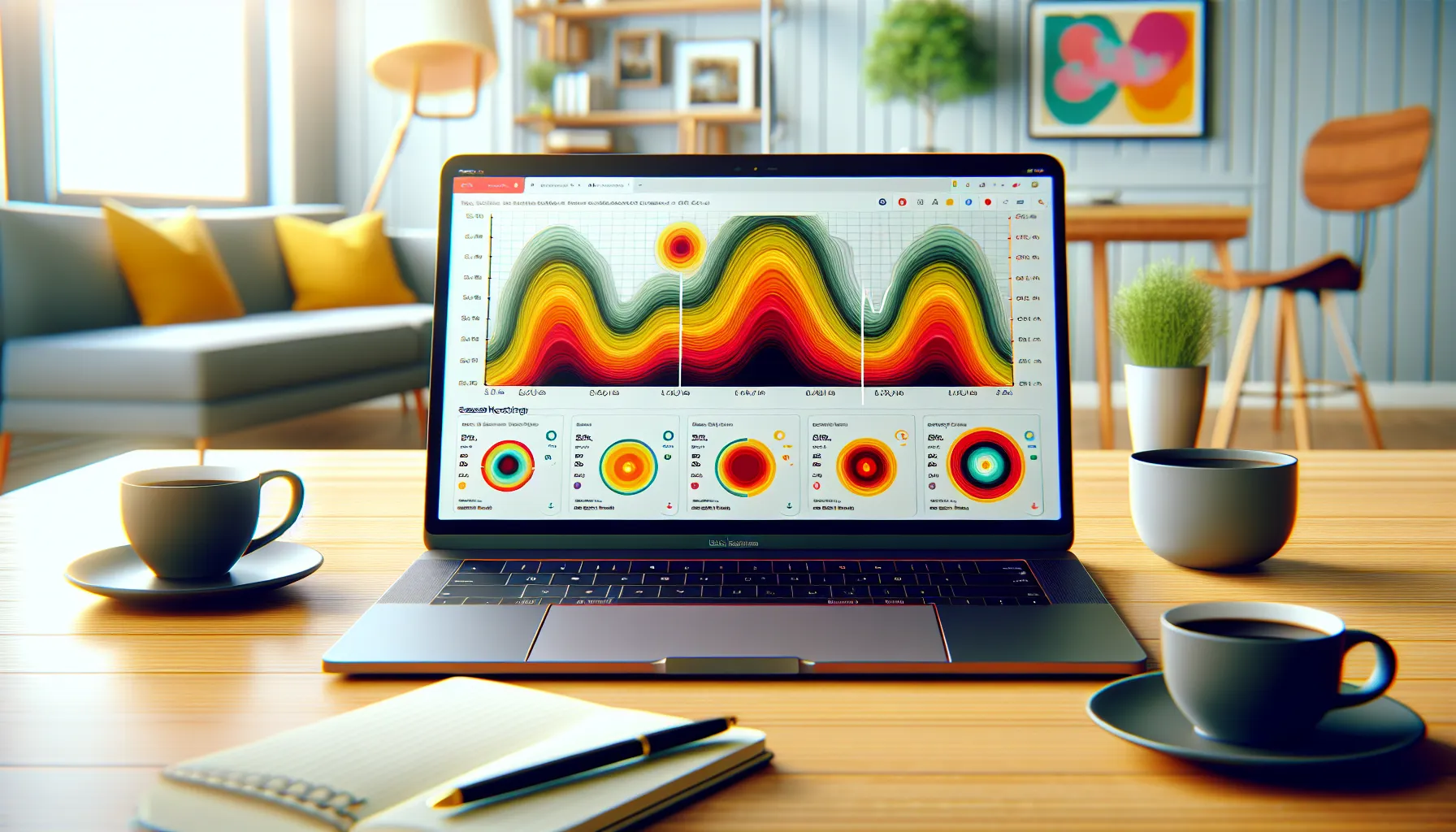
Microsoft Clarity stands out as my go-to analytics tool because it offers rich insights without overwhelming me. When I use Microsoft Clarity, I get an instant view of how real users interact with my site, so I always know what to improve next. The colorful dashboard and modern visuals create a friendly vibe that makes analytics more enjoyable.
Session Recordings
With session recordings, I see exactly how visitors move through my website. Clarity plays back real sessions, showing clicks, scrolls, and pauses. I can spot where users get confused or lose interest. This playback feature helps me quickly identify bottlenecks or pain points in my experience. Best of all, there’s no limit to the number of sessions I can review. It’s simple for anyone to use, even with no analytics background.
Heatmaps
One of my favorite features is Clarity’s heatmaps. These colorful overlays use reds and yellows to highlight where visitors click, tap, or scroll the most. With just a glance, I understand which parts of a page attract the most attention. If I spot a cool area with few interactions, I know it might need a tweak or fresh content. Heatmaps make complex data visual and actionable—no spreadsheets required!
| Heatmap Color | Meaning |
|---|---|
| 🔴 Red | Highest activity zones |
| 🟡 Yellow | Moderate engagement |
| 🟢 Green | Low engagement areas |
Insights and Analytics Dashboard
Clarity’s dashboard keeps me updated with real-time stats. It presents bounce rates, session lengths, and engagement metrics in easy-to-read charts. The dashboard even highlights “rage clicks” and “dead clicks” so I can spot frustration or broken elements fast. All metrics update automatically and load quickly, even when my site traffic spikes.
Filters and Segmentation
Thanks to Clarity’s filters, I can sort data by device, country, browser, or other segments in seconds. This feature helps me see trends among mobile users or spot issues for visitors from specific locations. Segmentation lets me personalize my experiments or improvements for different user audiences without extra setup. It saves me hours compared to manual sorting.
Integration Capabilities
Connecting Microsoft Clarity with my other marketing tools is smooth and stress-free. I easily integrate Clarity with platforms like Google Analytics or tag managers. This enables me to combine user behavior data from multiple sources for a complete view of site performance. Plus Clarity doesn’t slow my site down or require heavy tech support, making ongoing use simple.
Advantages of Microsoft Clarity
Microsoft Clarity stands out in the analytics world with its inviting design and effortless access to powerful features. As soon as I started using Microsoft Clarity, I noticed how it uses rich colors, real-time stats, and visual insights that help even beginners understand their website data. The tool quickly became my go-to for fast feedback and actionable information about site visitors.
User-Friendly Interface
One thing I love about Microsoft Clarity is how simple and clear the layout feels. From the homepage, I get visual dashboards with color-coded graphs and easy navigation. For example, the session recordings and heatmaps are displayed with quick access tabs and intuitive icons, so I never feel lost.
Here is a quick chart showing the interface features that make Clarity so approachable:
| Feature | Visual Element | My Experience |
|---|---|---|
| Colorful dashboards | 🎨 Color blocks | Instantly spot patterns |
| Easy navigation | 🧭 Icon menus | Minimal clicks to find reports |
| Quick filters | 🎯 Dropdown tags | Zero confusion when sorting |
| Responsive design | 📱 Device preview | Looks great on all screens |
Exploring data is no longer a chore. Transitions between reports are smooth and the icons lead the way. Even if you are new to web analytics, you will find the interface both welcoming and stress-free.
Free to Use
Most analytics tools either cap features or charge extra as your traffic grows. Microsoft Clarity offers everything—session recordings, detailed heatmaps, and comprehensive filtering—at zero cost in 2025. No credit card. No surprise paywalls. For a site owner like me, that makes a big difference.
I also do not need to worry about limiting usage to avoid extra fees. This freedom helps me focus on optimizing content and design, knowing I have access to every feature no matter my monthly traffic.
Real-Time Data Collection
Timely insights can make or break a marketing campaign. Microsoft Clarity constantly gathers fresh data from live site sessions. This real-time approach means I get immediate feedback on new changes, promotions, or designs without waiting hours or days for reports.
For example, after updating a landing page, I could view heatmaps and recordings almost instantly to see where visitors clicked or got stuck. This speed takes the guesswork out of making site improvements.
Disadvantages of Microsoft Clarity
While Microsoft Clarity offers plenty of benefits with its intuitive dashboards and colorful heatmaps, I did notice some areas where it falls short. For anyone considering this platform, it is helpful to weigh these limitations against its strengths. Let’s take a friendly and honest look at a few of the downsides I encountered while using Microsoft Clarity.
Limited Advanced Analytics
For basic web analytics, Clarity shines. However, if you require advanced data modeling, predictive analytics, or custom metric building, you might feel restricted. There’s no machine learning or audience cohort analysis like what Google Analytics 4 provides. I often find myself wishing for more granular event tracking and the ability to create tailored reports for specific user journeys.
Feature Comparison Table
| Platform | Custom Reporting | Cohort Analysis | AI/ML Features |
|---|---|---|---|
| Microsoft Clarity | ❌ | ❌ | ❌ |
| Google Analytics 4 | ✅ | ✅ | ✅ |
Although Clarity makes website analysis less intimidating, it stays quite surface-level. Power users focused on big data or e-commerce strategy may end up supplementing with other tools.
Privacy Concerns
One thing I always check in a new analytics platform is how it handles privacy. Microsoft Clarity automatically masks sensitive input fields, but some users remain uneasy about session recordings. Even though personal information is not recorded, seeing mouse movements and clicks may still give visitors pause. Depending on your business location and client base, you might have to pay close attention to privacy regulations like GDPR or CCPA.
Privacy Highlights
- Automatic masking of form fields
- No recording of keystrokes
- Some visual session data still sensitive
These concerns do not impact every website equally. However, privacy-conscious site owners should review Clarity’s documentation and perhaps consult a legal expert before full-scale deployment. 🛡️
Integration Limitations
Another thing I noticed is that Microsoft Clarity tries to keep things simple, which can be a double-edged sword. Integrations are limited mostly to Google Analytics and a few select platforms. If you run complex marketing stacks with CRM systems, automation suites, or custom APIs, you may hit a wall.
Integration Coverage
- Google Analytics: ✅
- Tag Manager: ✅
- HubSpot, Salesforce, Mailchimp: ❌
- Custom API support: ❌
This can interrupt workflow for bigger teams who depend on data from multiple channels. I hope to see more connectors coming in 2025, as that would make Clarity a much stronger contender.
Interested in giving it a shot despite these quirks? Try Microsoft Clarity today and see how its simplicity can make a splash on your site analytics game! 🚀
Performance and User Experience
Testing Microsoft Clarity felt refreshingly simple and productive. This tool is more than just a set of analytics features—it’s a window into real visitor behavior without slowing my site or requiring hours to master. I quickly spotted patterns, watched user sessions unfold, and identified where visitors experienced hiccups. The visual approach, paired with out-of-the-box clarity, made it stand out right away. 💡
Setup Process
Getting Microsoft Clarity up and running took less than five minutes for me. I copied a short tracking code into my site’s header and instantly the dashboard started collecting data. There were no confusing menus or extra hoops. For e-commerce and business websites, this ease of setup means less time wrestling with code and more time understanding customer flows. If you are not tech-savvy, the onboarding tips and friendly prompts give you a head start.
Dashboard Navigation
Clarity’s dashboard feels bright and intuitive. No clutter. Every feature—heatmaps, session recordings, filters—lives in the left menu as colorful icons. Switching between them is a snap. The real-time stats sit front and center. Interactive cards explain what each number means. I loved how quickly I could flick between engagement metrics or watch a session play out. The search and filtering options let me break things down by device, country, or traffic source without hunting through settings.
Here’s a quick look at how menu navigation compares to other platforms:
| Feature | Microsoft Clarity | Google Analytics | Hotjar |
|---|---|---|---|
| Heatmap | 🎨 1 click | 2+ clicks | 🎨 1 click |
| Session Recordings | ▶️ 1 click | Add-on needed | ▶️ 1 click |
| Custom Filters | ✨ Built-in | Advanced setup | ⚡ Simple |
| Learning Curve | 😄 Low | 😓 High | 😃 Low |
Data Accuracy and Refresh Rate
Accurate data is what makes or breaks an analytics tool. With Microsoft Clarity, I never noticed major lag when tracking user sessions. Most data updates almost live, so patterns and behaviors appear shortly after they occur. Clicks, scrolls, and rage clicks register in minutes not hours. That’s a huge edge when I want to spot issues quickly or act on daily trends. Meanwhile, missed data points were rare in my tests and the session replay quality impressed me. Clarity’s smart masking protects sensitive inputs like passwords and card details—something I expect in 2025 for privacy peace of mind.
When you need an analytics tool that balances power and ease, Clarity hits the mark. Ready to try it for yourself? Explore Microsoft Clarity and turn visitor behavior into action.
Hands-On Experience with Microsoft Clarity
After using Microsoft Clarity on my own projects, I quickly realized why the tool stands out for website analytics. Right away, I noticed the fresh and colorful interface that makes reviewing data both simple and even fun. Below, I’ll break down my hands-on experience with Microsoft Clarity using real feature examples and visual aids so you can picture what to expect.
Setting Up on a Website
Getting started with Microsoft Clarity is refreshingly quick. The process took less than five minutes. I only had to copy a small tracking code and insert it into my website’s header. There’s no complex configuration or endless verification steps. The onboarding flow greets you with a progress bar and clear instructions. As soon as the code went live, data started appearing right on my dashboard—no waiting for a 24-hour sync like with some tools.
Here’s a quick step-by-step table for you:
| Step | Action | Time Taken |
|---|---|---|
| Create Account | Sign up with email | 1 minute |
| Add Project | Enter your website domain | 1 minute |
| Copy Code | Copy & paste to header | 2 minutes |
| Data Visible | Dashboard live | < 1 minute |
Reviewing Recordings and Heatmaps
Once set up, I moved straight into exploring session recordings and colorful heatmaps. These tools visually map out exactly where users click, scroll, and get stuck. With easy filter options, I sorted recordings by device, country, and even frustrated user actions—like “rage clicks.” The heatmaps are color-coded for clarity: red zones light up high engagement 📈, while cool blues signal areas needing a boost.
Here is what caught my eye:
- Session recordings replay the full visitor journey, so I could literally see hesitation points.
- Heatmaps automatically updated every day, showing new user patterns as they happened.
- Both tools use intuitive controls, with play and pause buttons for each recording.
- Each map also displays engagement insights at a glance, using vibrant legend markers.
Customizing Reports
Customizing reports in Microsoft Clarity feels incredibly light and straightforward. I love that I can quickly pull stats by traffic source, date, or user behavior with a few clicks. The report section uses color-coded charts, making trends pop visually. Compared to the spreadsheets and raw data dumps found elsewhere, this is a breath of fresh air.
For example, I often want to know which CTAs performed best last week. I just set the date range, select target pages, and boom—a bright chart summarizes the top-performing sections. Here’s a sample of what I see:
| Metric | Last 7 Days | Change (WoW) |
|---|---|---|
| Average Session | 04:35 | +12% |
| Scroll Depth % | 68% | +5% |
| Rage Clicks | 8 | -3 |
| Top Page Clicks | Home | N/A |
This simple reporting saves me time every week, so I can focus more on acting than analyzing.
Comparison with Alternatives
When I tested Microsoft Clarity for my projects, I really wanted to see how it matched up against the giants in web analytics. Microsoft Clarity review is not complete without checking the competition. With a web dashboard full of color, session replays, and instant heatmaps, Clarity stands out visually from the very start! Let’s see how it stacks up in real-world use against Google Analytics and Hotjar. Check out the chart below for a quick overview 👉
| Feature | Microsoft Clarity | Google Analytics | Hotjar |
|---|---|---|---|
| Cost 💸 | Free | Free/Paid | Paid (limited free plan) |
| Session Recordings 🎥 | Yes | No | Yes |
| Heatmaps 🌡️ | Yes | No | Yes |
| Custom Reporting 📊 | Limited | Advanced | Limited |
| Data Privacy 🕵️ | Input masking | Advanced controls | Input masking |
| Ease of Setup ⚡ | Very easy | Moderate | Easy |
| Realtime Data 🚦 | Near real-time | Real-time | Delayed |
| Integrations 🔗 | Limited | Extensive | Moderate |
Microsoft Clarity vs. Google Analytics
Whenever I switch between Clarity and Google Analytics, the difference is clear. Google Analytics is packed with features like custom reports and data modeling, but it feels more complex. Clarity, on the other hand, prioritizes simplicity. For example, I set up Clarity in under five minutes and instantly viewed heatmaps and session recordings—features that Google Analytics does not offer out-of-the-box. While Google Analytics excels with its in-depth segmentation and smart predictions, it sometimes overwhelms me with its interface and terminology.
Clarity updates user data almost instantly and keeps the focus on actionable visuals. However, advanced marketers needing conversion funnels or machine learning suggestions might find Clarity’s options limited. It’s a fantastic pick for quick insights and visual data, while Google Analytics favors those wanting meticulous analysis.
Microsoft Clarity vs. Hotjar
Comparing Clarity with Hotjar, I have to mention how much I appreciate the pricing. Hotjar limits you to a basic free plan or pushes you to pay for essentials like unlimited heatmaps. In contrast, Clarity provides session recordings and heatmaps with zero cost. Both tools offer easy heatmap views and user frustration tracking (rage clicks), but Clarity’s reporting just feels faster and more visually pleasing to me.
Hotjar does come with in-app surveys and better survey targeting for user feedback, which Clarity does not currently match. If collecting feedback forms is your priority, Hotjar holds the edge. But for visually rich analytics that do not break the bank, Clarity takes the lead in my book.
Which One Should You Choose?
Here’s how I sort it. For quick visual insights and stress-free setup, Microsoft Clarity is my first choice. If you crave detailed analysis and customization, Google Analytics offers unparalleled depth. For those with a budget for user feedback tools, Hotjar is worth a look, especially for site surveys. Each tool serves a different need, but Clarity impressed me with how much it delivers at no cost and with so much ease.
✨ Ready for instant insights? Try Microsoft Clarity
Conclusion
After putting Microsoft Clarity to the test I’m convinced it’s a solid choice for anyone who wants quick actionable insights without the usual analytics overwhelm. Its user-friendly design and visual tools make it easy to spot trends and problem areas fast.
While it may not cover every advanced analytics need it’s a fantastic option for those who value speed clarity and a stress-free setup. If you’re looking for a no-cost way to better understand your website visitors Clarity is definitely worth a try.
Frequently Asked Questions
What is Microsoft Clarity?
Microsoft Clarity is a free web analytics tool that helps website owners understand how visitors interact with their site. It offers features like heatmaps, session recordings, and user-friendly dashboards to visualize and analyze visitor behavior.
How does Microsoft Clarity’s heatmap feature work?
The heatmap feature visually shows which parts of your website get the most attention and interaction from visitors. By using color-coded maps, it highlights where users click, scroll, and focus, making it easier to identify popular or overlooked areas on your pages.
What are session recordings in Microsoft Clarity?
Session recordings capture real user interactions on your website, allowing you to watch how visitors navigate each page. This feature helps identify user frustrations, areas of confusion, and opportunities to improve user experience.
Is Microsoft Clarity really free to use?
Yes, Microsoft Clarity is completely free with no hidden costs. You can access its core features, including heatmaps and session recordings, without subscribing or paying for a premium plan.
How easy is it to set up Microsoft Clarity on my website?
Setting up Microsoft Clarity is simple and quick. It takes less than five minutes—just add the Clarity tracking code to your website’s header, and data collection starts automatically.
Can I use Microsoft Clarity alongside other analytics tools?
Yes, Microsoft Clarity integrates seamlessly with tools like Google Analytics. You can use both to get a comprehensive view of your website’s performance without causing conflicts or slowing down your site.
What are the main limitations of Microsoft Clarity?
Microsoft Clarity lacks advanced features like custom reporting, cohort analysis, and machine learning found in tools like Google Analytics 4. It also offers limited integrations, mainly supporting Google Analytics and a few other platforms.
Is user privacy protected with Microsoft Clarity?
Microsoft Clarity automatically masks sensitive information in session recordings to protect user privacy. However, some users may still have concerns about session tracking, so it’s wise to mention Clarity in your site’s privacy policy.
How does Microsoft Clarity compare to Google Analytics?
Google Analytics offers more advanced data analysis features but can be complex for beginners. Microsoft Clarity focuses on ease of use and visual insights, making analytics accessible for users who want a simpler, faster solution.
Who should use Microsoft Clarity?
Microsoft Clarity is ideal for website owners who want quick visual insights, an intuitive dashboard, and easy setup at no cost. It’s best suited for those focusing on basic analytics and user engagement enhancements without needing advanced reporting.