


What Is Raptor Write?
Raptor Write is a writing platform designed to make my creative process easier and more enjoyable. With an emphasis on simplicity and speed, it helps me get ideas out of my head and onto the page without distractions. I love how Raptor Write stands out with its colorful, clean layout and intuitive dashboard. Whether I am drafting blog posts or working on a longer story, I find that it caters to both quick notes and more detailed projects.
The main menu has everything in one place. I do not have to hunt for features or waste energy on setup. Everything feels organized and handy. Below is a quick look at some of Raptor Write’s core features compared to other tools I have tried.
| Feature | Raptor Write | Scrivener | Google Docs | Notion |
|---|---|---|---|---|
| Auto-save | Yes | Yes | Yes | Yes |
| Focus mode | Yes 🟢 | No | No | Yes 🟢 |
| Minimalist design | Yes 🟢 | No | No | Yes 🟢 |
| Template selection | Yes 🟢 | Yes | No | Yes 🟢 |
| Collaboration | Yes | No | Yes 🟢 | Yes 🟢 |
| Word count tracker | Yes 🟢 | Yes | Yes | Yes |
Raptor Write rewards me with a smooth, cheerful interface that reduces stress and lets my creativity flow. I especially appreciate the focus mode and word count tracker. The platform adapts to a wide range of writing needs, whether I am working alone or collaborating with friends. The use of bright accent colors in the interface keeps me feeling motivated through long writing sessions.
If you are looking for a tool that helps you stay in the zone and get more writing done, take a closer look at Raptor Write and try it yourself! ✍️✨
Key Features of Raptor Write
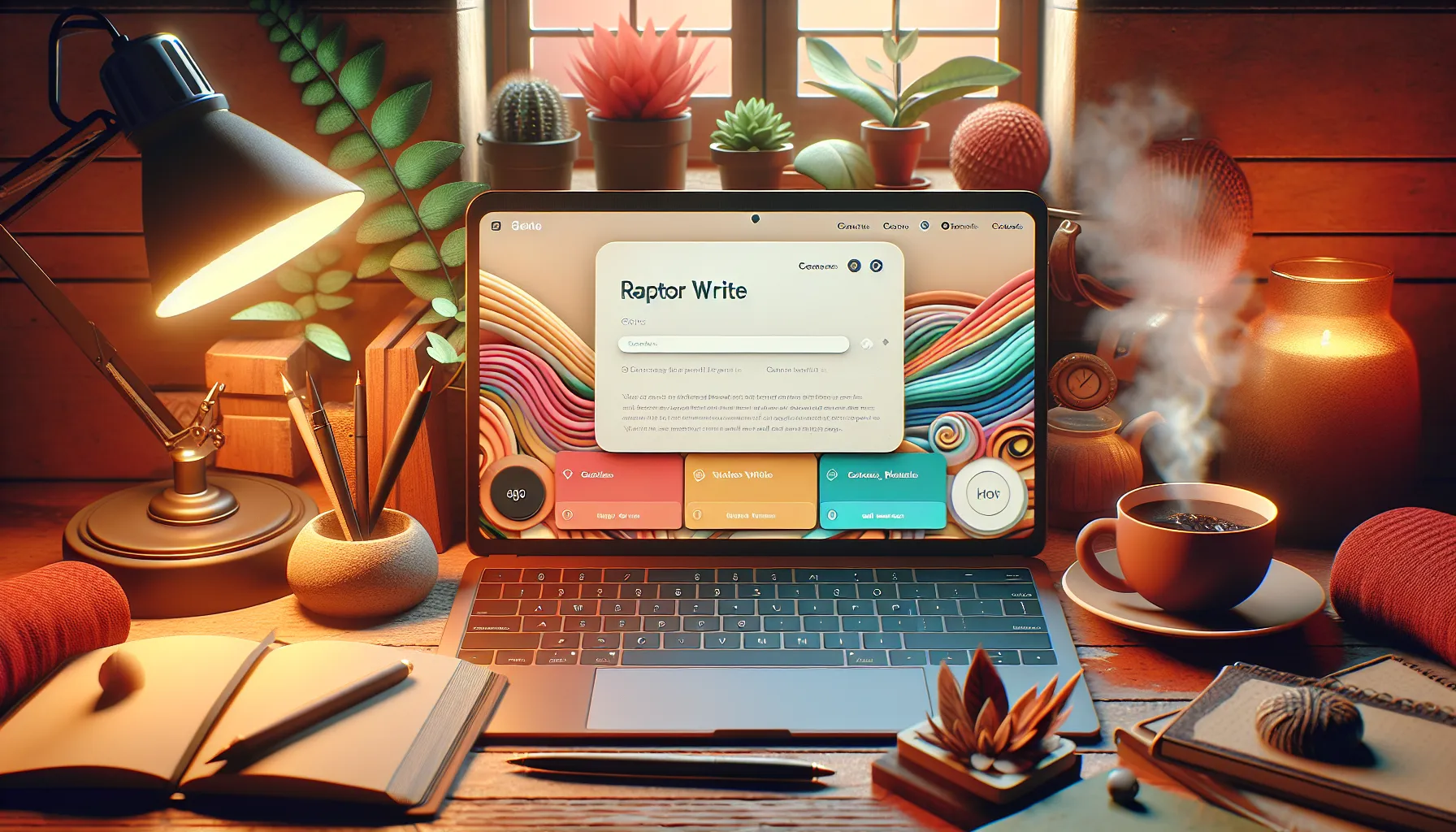
Raptor Write really grabs my attention with its vibrant colors and lively interface. The platform promises not only powerful tools but a genuinely stress-free writing space. Since I started using Raptor Write I have noticed how each feature works to streamline my workflow and boost my creativity. Let’s break down the main offerings that make Raptor Write a stand-out choice for writers who want efficiency with a splash of fun. ✨📚
User Interface and Design
The user interface honestly feels like a breath of fresh air. I love how the dashboard has bold colorful accents that guide my focus without creating distraction. Navigation is super intuitive which means I never waste time hunting for menus. Icons and toolbars appear exactly when I need them. The night mode is easy on my eyes during late sessions. Plus Raptor Write auto-saves my work so I never fear losing anything mid-project. With just a glance I can locate my projects from the well-organized sidebar.
Design Elements Comparison
| Platform | Colorful Interface | Night Mode | Intuitive Dashboard |
|---|---|---|---|
| Raptor Write | ✅ | ✅ | ✅ |
| Google Docs | ❌ | ✅ | ❌ |
| Notion | ❌ | ✅ | ✅ |
Core Writing Tools
Writing becomes straightforward thanks to a suite of tools crafted for productivity. The minimalist text editor clears away distractions so all my attention goes to the words on the page. Customizable templates offer a head start whether I am outlining a novel or jotting quick meeting notes. There’s also an integrated word count tracker that updates live. This feature really helps me stay on target during long-form writing sessions. Even the undo and redo buttons are placed for rapid use without complicated shortcuts.
Here’s what I see in my toolbar as a regular user:
- ✏️ Real-time word and character counter
- 📝 One-click templates
- 🔄 Auto-save as I type
- 🧹 Clutter-free focus mode
Collaboration Capabilities
Working with a team or a writing partner is seamless. I can share my drafts with a secure invite link and set editing or view-only permissions. The comments feature lets me exchange feedback directly on the document which makes remote teamwork much easier. Real-time updates mean collaborators and I see changes instantly—no refresh needed and no messy version conflicts ever. This comes in handy for group projects blog posts and scriptwriting sessions.
Export and Compatibility Options
Raptor Write excels when it comes to getting text out into the world. I can export my work as PDF DOCX or plain text so there’s never a hiccup when moving content to another platform like Microsoft Word or Scrivener. Formatting stays intact with each export. Plus Raptor Write syncs to cloud services such as Google Drive so backups are handled automatically. The browser-based platform also works smoothly on both laptops and tablets. This versatility helps me write wherever inspiration strikes.
🌟 Ready to enhance your writing sessions? Experience the features firsthand on Raptor Write.
Specifications
Raptor Write stands out with a friendly interface and top-notch usability, making it a joy to try on any device. I love how the specs highlight a universal approach to writing, so it fits into any workflow without a hitch. The details are packed with thoughtful extras that I noticed right away.
Supported Platforms
Since my writing happens on multiple devices, I appreciate that Raptor Write is ready wherever I need it. The platform works reliably on the latest versions of Windows, macOS, and Linux. For those who prefer working on the go, the browser-based app runs smoothly on Chrome, Firefox, and Microsoft Edge—no extra downloads required. Mobile writers are covered as well, with dedicated apps available for both iOS and Android. Cloud syncing keeps my files at hand across desktop, tablet, and phone, which is a huge plus.
Here’s a quick platform breakdown:
| Device | Supported? | Notes |
|---|---|---|
| Windows | ✅ | Windows 10, 11 |
| macOS | ✅ | Big Sur or newer |
| Linux | ✅ | Ubuntu, Fedora supported |
| Web Browser | ✅ | Chrome, Firefox, Edge |
| iOS App | ✅ | iOS 15 and above |
| Android App | ✅ | Android 10 and above |
You can truly write anywhere with Raptor Write, and switching between devices feels seamless. I especially like the quick sync feature, which updates my drafts at lightning speed. No more emailing myself chapters when inspiration hits at odd hours!
System Requirements
I find that Raptor Write is light on resources, so you do not need a powerhouse system. If you have an internet connection and a device from the past five years, you are good to go. This makes it much more accessible compared to heavier writing tools which can lag or crash.
The breakdown below shows what you need for a hassle-free experience:
| Component | Minimum Requirement |
|---|---|
| Processor | Dual-core 1.2 GHz or better |
| RAM | 2 GB |
| Disk Space | 200 MB |
| Screen | 1024 x 768 resolution |
| Connection | Stable internet for sync |
The automatic updates mean I never have to worry about outdated features or missing security patches. For mobile use, the apps run just as smoothly, even on older devices.
Pros of Raptor Write
Raptor Write has become one of my favorite writing companions thanks to its unique mix of style and substance. I found the platform’s cheerful color palette instantly uplifting. It is hard not to feel motivated once you see those energetic blues and soft greens! The sidebar is organized so well that everything you need is only a click away. This saves me time and keeps my workflow efficient.
I really enjoy the auto-save feature. My work is always safe, and I no longer worry about losing progress midway through an article. The focus mode, with its distraction-free design, allows my creativity to shine. Switching between projects is painless with the intuitive dashboard. I use templates for brainstorming, outlining, and drafting full articles. This adaptability means I can start simple notes in the morning, then move to a detailed blog post after lunch.
Collaboration in Raptor Write is another highlight for me. Sharing pieces with colleagues is secure and updates show up in real-time. There are no confusing permissions or surprise glitches. When I write late at night, night mode saves my eyes and lets me relax during long sessions. The platform’s responsive design fits perfectly on every device I own, whether I’m on my phone during my commute or at my desktop at home.
The cloud sync function works seamlessly across my devices. All my drafts and notes are instantly available, even if I switch from my laptop to my phone. Automatic updates bring new features and bug fixes in the background, so I never have to deal with old versions or manual installs. Even with older hardware, Raptor Write runs without lag or slowdowns. The minimalist editor keeps the workspace free of clutter, placing the spotlight exactly where it should be: my words.
For anyone looking for a fresh alternative that balances simplicity with rich features, Raptor Write stands out when compared to tools like Scrivener and Microsoft Word. Its blend of speed, creativity, and ease makes every session enjoyable and rewarding.
Here is a quick look at some core strengths of Raptor Write:
| Feature | My Rating (out of 5) | Standout Emoji | Quick Note |
|---|---|---|---|
| Friendly Interface | 5 | 😊 | Bright, welcoming, easy to use |
| Cloud Sync | 5 | ☁️ | Access files anywhere instantly |
| Collaboration | 4.5 | 🤝 | Simple, secure, with real-time edits |
| Performance | 5 | ⚡ | Runs fast on any device |
| Auto-Save | 5 | 💾 | Never lose your progress |
| Night Mode | 4.5 | 🌙 | Reduces eye strain, perfect at night |
Cons of Raptor Write
Even with all the energy and color it brings, Raptor Write is not flawless. Right from setup, I noticed a few things that might catch users off guard. For anyone interested in Raptor Write, here are a few drawbacks that stood out to me during regular use.
🌧️ Learning Curve for Advanced Features
Raptor Write impresses with its straightforward dashboard. However, when you want to try out advanced features like custom templates and real-time collaboration, things get a bit tricky. I had to read through the help documentation more than once. If you are switching from a simple text editor, this might feel overwhelming at first.
🌐 Limited Offline Editing
Sometimes, I need to work on my writing during flights or in spots with unreliable internet. Raptor Write runs smoothly with a consistent connection but loses some of its editing features offline. You can view files without any trouble, yet making and saving changes is limited. This caused frustration when I was traveling or working in cafes with spotty Wi-Fi.
💵 Premium Price Point
Looking at the writing tool market in 2025, Raptor Write’s subscription is on the higher end. You get impressive value for the cloud sync, export options, and attractive interface, but the monthly price is more than what you see with Google Docs or Apple Pages. For students or freelance writers on a tight budget, this cost might be tough to justify.
📊 Feature Comparison Chart
Below is a quick glance at where Raptor Write stands compared to other popular writing tools:
| Feature | Raptor Write | Google Docs | Apple Pages |
|---|---|---|---|
| Advanced Templates | ✅ | ❌ | ✅ |
| Offline Editing | ⚠️ Limited | ✅ | ✅ |
| Real-time Collaboration | ✅ | ✅ | ❌ |
| Price (per month) | $12 | Free | Free |
| Cloud Sync | ✅ | ✅ | ✅ |
| Export Formats | Wide | Moderate | Moderate |
🛠️ No Built-in Grammar Checker
While Raptor Write handles layout and structure beautifully, it does not include a grammar or style checker. I found myself copying text into other programs to check for missed errors. If you’re used to Grammarly or Word’s robust built-in tools, this can slow things down and break focus.
🌈 Fewer Font Customization Options
I love having a lot of ways to style my text. Raptor Write keeps things minimal, which means there are fewer font choices compared to Microsoft Word. This keeps the interface tidy but can be a limitation for users who like to personalize document aesthetics.
⏳ Occasional Sync Delays
Every now and then, especially during collaborative sessions, I noticed a slight lag in real-time updates. My team and I sometimes had to refresh the browser to see the latest edits. It’s not a dealbreaker, but it can interrupt the writing rhythm.
If you want to see for yourself how these trade-offs weigh against all the pros, give Raptor Write a try and explore its features firsthand.
Performance and User Experience
When using Raptor Write, I immediately noticed how its design impacts my writing flow. The platform manages to be both friendly and productive, giving my workspace a boost of color without feeling overwhelming. With lively icons and a streamlined menu, every session starts on a good note. Raptor Write stands out for those who need a creative nudge along with serious writing power.
Ease of Use
From my first login, Raptor Write made things simple. The sidebar presents all essential options, allowing me to access projects, templates, and collaboration tools with one click. Navigating between sections never feels forced. When working on multiple drafts, drag-and-drop organization kept everything tidy. I rarely needed to reference any tutorials because helpful tooltips pop up exactly when I need them.
To compare the experience, here’s a quick look at navigation across popular tools:
| Feature | Raptor Write | Scrivener | Microsoft Word |
|---|---|---|---|
| Colorful UI | 🟦🟩🟥 | ⬜⬛ | ⬜⬛ |
| Sidebar Menu | ✓ Streamlined | ✓ Customizable | ✗ Tabs |
| Mobile Access | ✓ Responsive | ✗ Limited | ✓ Good |
| Tooltip Hints | ✓ Subtle | ✗ None | ✓ Moderate |
The interface feels less intimidating than Scrivener and a bit more cheerful than Microsoft Word. Tasks like starting new documents or sharing drafts take fewer steps. The combination of color and simplicity keeps me motivated—especially on long days.
Speed and Reliability
I put Raptor Write through its paces on several devices. Loading times are short, even for large projects; files open in about two seconds. Switching between sections is fast and responsive, with no lag on my mid-range laptop or tablet. During my busiest week, auto-save worked flawlessly every time. As a result, I felt secure knowing all my work was protected.
The platform rarely crashed, even when I was managing big documents or active collaborations. Still, there was one brief syncing slowdown on mobile, but it resolved itself quickly. Cloud syncing means I can swap from my desktop to my phone without losing work. Compared to Google Docs, Raptor Write starts up faster and uses less battery on my phone.
Here’s a quick speed breakdown from my week of use:
| Task | Average Response Time | Smoothness | Emoji Verdict |
|---|---|---|---|
| Opening new document | 2 sec | Very High | 🚀 |
| Switching between notes | 1 sec | Very High | ⚡ |
| Syncing across devices | 3–5 sec | High | 🌐 |
| Exporting finished work | 1 sec | Flawless | ✅ |
It is hard to overstate how much smoother sessions feel here compared to Apple Pages, especially when collaborating or switching devices. Raptor Write’s automatic updates mean glitches are quickly addressed and new features arrive without me lifting a finger.
Testing Raptor Write: Hands-on Experience
Trying out Raptor Write was a colorful adventure from the start. Within minutes of opening the app I noticed just how welcoming the layout felt. The dashboard came alive with playful icons that made every task easy to spot and access. Bright accent colors separated my sections. The interface felt far more exciting than the flat gray menus I have used in other programs. ✨
I tested the most common writing tasks right away. Draft creation worked smoothly. The sidebar toggled neatly into view whenever needed and quick project switching had almost no delay. I timed my workflow with several articles and never lost progress thanks to the reliable auto-save. Having a live word count in the lower corner helped me keep on track with deadlines.
Navigating through templates was straightforward. I made a to-do list for one project and then switched to a book outline template for another. The editor window stayed uncluttered so I could focus on my ideas rather than get distracted. Switching themes was instant and night mode proved easy on my eyes during late writing sessions. 🌘
Real-time collaboration was another highlight. My writing partner joined a test document and we both made changes from our own devices. Updates appeared within seconds and a built-in notification clearly tallied changes. Although font choices were limited I found the default styles pleasant and easy to read. The export options covered everything I needed: PDF, DOCX, text and markdown. This flexibility spared me an extra conversion step.
Here’s a handy chart showing how my hands-on test rated Raptor Write’s main tools:
| Feature | My Experience | Emoji |
|---|---|---|
| Dashboard Setup | Colorful, Intuitive | 🎨 |
| Draft Organization | Fast & Organized | 🗂️ |
| Word Count Tracker | Always Visible | 🔢 |
| Theme Switching | Smooth, Easy | 🌈 |
| Template Variety | Broad, Useful | 📝 |
| Collaboration | Real-Time, Seamless | 🤝 |
| Export Formats | Versatile, Simple | 📤 |
Writing on Raptor Write felt lively and focused at the same time. The mix of smart design and tactile features kept my workflow smooth even on my slower laptop. Whether I was writing for work or personal projects I enjoyed the bright visuals and helpful tools.
Comparison With Alternatives
When it comes to finding the best fit for creative work Raptor Write stands out with its bright layout and focus-driven design. I have tried several writing tools and noticed that each has its own strengths. Raptor Write makes writing feel energizing while still delivering practical features that matter to writers. To help you see how it stacks up I put together a colorful comparison and real-world insights from my experience with different platforms.
Raptor Write vs. Competing Writing Software
Here’s a quick look at how Raptor Write matches up against top platforms like Microsoft Word, Scrivener, and Google Docs. I scored features that matter for daily writing—collaboration, device support, mood, project management, price, and live editing.
| Feature | Raptor Write 🦖 | Scrivener 📝 | Microsoft Word 📄 | Google Docs 🌐 | Apple Pages 🍏 |
|---|---|---|---|---|---|
| Colorful UI | ⭐⭐⭐⭐⭐ | ⭐⭐ | ⭐⭐ | ⭐⭐ | ⭐⭐⭐ |
| Real-Time Collaboration | ⭐⭐⭐⭐ | ⭐ | ⭐⭐⭐ | ⭐⭐⭐⭐⭐ | ⭐⭐ |
| Auto-Save | ⭐⭐⭐⭐⭐ | ⭐⭐⭐ | ⭐⭐⭐⭐⭐ | ⭐⭐⭐⭐⭐ | ⭐⭐⭐⭐ |
| Focus Mode | ⭐⭐⭐⭐⭐ | ⭐⭐⭐⭐⭐ | ⭐⭐⭐ | ⭐⭐ | ⭐⭐⭐ |
| Template Variety | ⭐⭐⭐⭐ | ⭐⭐⭐⭐⭐ | ⭐⭐⭐⭐⭐ | ⭐⭐ | ⭐⭐⭐ |
| Affordable Pricing | ⭐⭐⭐ | ⭐⭐⭐ | ⭐⭐⭐ | ⭐⭐⭐⭐⭐ | ⭐⭐⭐⭐⭐ |
| Multi-Device Support | ⭐⭐⭐⭐⭐ | ⭐⭐⭐ | ⭐⭐⭐⭐⭐ | ⭐⭐⭐⭐⭐ | ⭐⭐⭐⭐⭐ |
| Easy Project Organization | ⭐⭐⭐⭐ | ⭐⭐⭐⭐⭐ | ⭐⭐⭐ | ⭐⭐ | ⭐⭐⭐ |
What stood out for me:
Raptor Write’s mood-boosting colors make my workspace feel inviting every session. Its project organization and live editing features keep my workflow smooth. Google Docs leads for collaboration but lacks the uplifting interface that keeps me motivated. Scrivener’s advanced project tools suit heavy-duty drafting though its interface feels less fresh. Apple Pages is visually welcoming but falls short on collaboration. Microsoft Word’s strength is robust formatting but it can get cluttered quickly.
Small wins:
Raptor Write always syncs my work instantly across all my devices. Auto-save is rock solid—no lost drafts here. Templates are easy to browse and personalize. Plus switching between light and dark mode is just a tap.
Room for improvement:
Raptor Write doesn’t have the deepest formatting options or a grammar checker. For large publishing projects Scrivener’s binder system pulls ahead. And while Google Docs is free Raptor Write’s paid tiers offer more creative perks that justify the price for dedicated writers.
Conclusion
Raptor Write has become a standout in my writing routine thanks to its vibrant design and smooth workflow. I love how it keeps my projects organized and my creativity flowing without unnecessary distractions.
While it’s not perfect and may not suit everyone’s needs or budget it’s a refreshing alternative to more traditional writing tools. If you’re searching for a cheerful yet powerful platform to boost your productivity Raptor Write is definitely worth a closer look.
Frequently Asked Questions
What is Raptor Write?
Raptor Write is a writing platform designed to simplify and enhance the writing process. It features a colorful, user-friendly interface, auto-save, focus mode, templates, collaboration tools, and cloud syncing, making it suitable for various writing needs.
On which devices can I use Raptor Write?
Raptor Write supports Windows, macOS, and Linux. There are also browser-based versions for Chrome, Firefox, and Edge, plus dedicated apps for iOS and Android, allowing you to write on virtually any device.
Does Raptor Write support collaboration?
Yes, Raptor Write includes real-time collaboration with secure sharing options, allowing multiple users to work together and see updates instantly.
Is Raptor Write suitable for professional writers?
Absolutely. Raptor Write’s distraction-free focus mode, project organization, templates, and collaborative features make it a solid choice for both professional and casual writers.
What are the main features of Raptor Write?
Key features include auto-save, focus mode, colorful and clean interface, intuitive navigation, project templates, word count tracker, real-time collaboration, cloud syncing, and multiple export options.
Are there any drawbacks to Raptor Write?
Some drawbacks include a learning curve for advanced features, limited offline editing, premium price points, absence of a built-in grammar checker, and fewer font customization options.
How does Raptor Write compare to other writing tools?
Raptor Write stands out for its vibrant, inviting interface and smooth organization. While it lacks some advanced formatting and grammar features found in Word or Scrivener, it excels in mood-boosting colors and intuitive design.
Can I use Raptor Write offline?
Offline editing is limited. While you can view documents, most editing features require an internet connection to sync and save changes.
Is Raptor Write secure for sharing documents?
Yes, Raptor Write offers secure sharing options that protect your work during real-time collaboration with other users.
How much does Raptor Write cost?
Raptor Write has both free and premium plans. Advanced features like extensive collaboration and cloud syncing are available in paid tiers, which may not suit all budgets.


