
What Is Mouseflow?
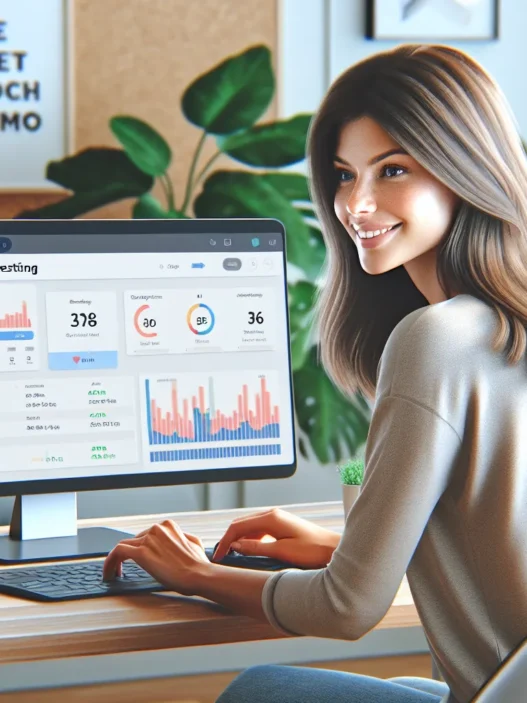
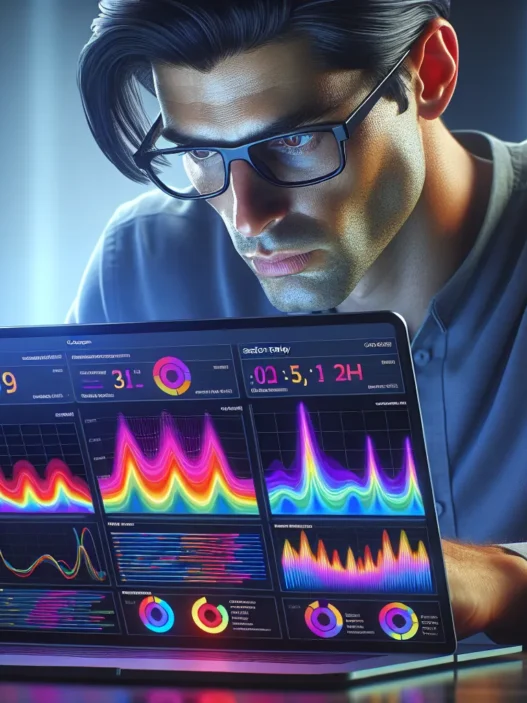
If you have ever wondered exactly what people do on your website, Mouseflow makes it possible to see their journeys in vivid detail. Mouseflow is a robust analytics platform built for anyone who wants a clear look at real user behavior—not just numbers or charts. Instead, I get actual session recordings, heatmaps with vibrant colors, and filterable data that tell the full story behind every click, tap, and hover.
Mouseflow at a Glance
| Feature | Description | Visual Emoji |
|---|---|---|
| Session Replays | Watch real user sessions | 🔄 |
| Heatmaps | Spot hot and cold spots | 🔥❄️ |
| Funnel Analysis | Trace where users drop off | 🛤️ |
| Form Analytics | See where users struggle in forms | 📝 |
| Feedback Tools | Collect on-site feedback | 💬 |
One thing that sets Mouseflow apart is the replay feature. I can see exactly what frustrates my users in real time with just a few clicks. The colorful heatmaps show me which areas of my web pages attract attention and which get ignored. Not every analytics tool feels this interactive or user-friendly.
Seeing how people interact with my calls-to-action or navigation menus helps me make smarter design changes. Since Mouseflow tracks these actions automatically, I save time but still grab crucial insights. Setting it up only requires adding a small script—no complicated coding needed.
I love that Mouseflow’s session filtering options are colorful and visual. Filtering by device, location, or traffic source makes data sorting painless—and easy for anyone on my team to understand. Plus, the dashboard feels intuitive, so I never feel lost while searching for answers.
Ready to experience Mouseflow for yourself? Check out Mouseflow here and see what your users are really doing.
Key Features of Mouseflow

When I started using Mouseflow, I noticed instantly how it brings user journeys to life with easy-to-understand visuals and tools. This mouseflow review will highlight the main features that made my website analysis more engaging and actionable. Each tool is designed to help me spot trends, remove user roadblocks, and improve design—without sifting through rows of numbers. 🎨🔍
Session Replay
Session replay is Mouseflow’s standout feature. It lets me watch recordings of real user sessions, so I see mouse movements, clicks, taps, and scrolls as they happen. These videos reveal what grabs attention and which spots cause confusion. For example, I once saw visitors repeatedly ignore an important button. This helped me redesign it quickly. The timeline slider and event markers make it easy to skip to key actions, saving me tons of time.

Heatmaps
Heatmaps use color-coded overlays to show where users interact most. Mouseflow offers five different types: click, movement, scroll, attention, and geo heatmaps. These tools show which parts of a page are popular and which are overlooked. For instance, when a section lights up in red or orange, I know it’s catching eyes. If it’s all blue, I may consider a redesign.
| Heatmap Type | Main Use | Color Indicator |
|---|---|---|
| Click | Track most-clicked elements | Red = Most Clicked |
| Movement | See where mice hover longest | Orange = High Activity |
| Scroll | Measure how far users scroll | Yellow = Drop-off Zone |
| Attention | Highlight spots users view the longest | Green = High Engagement |
| Geo | Identify where users are geographically | Blue = Lower Engagement |
Funnels and Form Analytics
Funnels let me build step-by-step flowcharts showing where users start and where they drop out. I can spot pinch points where many users exit, which means I know exactly what to fix for better conversions. Form analytics break down each field, so I see where people hesitate, mistype, or bounce. One time, I found users abandoning a form due to a confusing birthdate picker—swapping it out improved completions almost instantly.
User Feedback and Surveys
Collecting feedback matters. With Mouseflow, I can launch on-site surveys and feedback forms at key touchpoints. They pop up based on behavior, which means I catch users at a crucial decision moment. Emoji-based ratings or short-answer surveys make it quick for visitors to respond. I also set up triggers like exit intent, so I get insights before users leave.
Integrations and Compatibility
Mouseflow connects easily with platforms like WordPress, Shopify, and Google Analytics. The integration took me just a few clicks and no extra coding. Whether I’m syncing events or merging data from other analytics tools, Mouseflow plays well with the most popular web platforms in 2025.
Mouseflow turned my analytics process from guesswork to clarity. Want to give these features a spin? Try Mouseflow for yourself here! 🚀
Performance and User Experience
Using Mouseflow instantly changed how I analyze website performance. The platform takes the guesswork out and replaces it with visual clarity 🔍 and interactive elements. Its bold colors and real-time charts make visitor data almost fun while offering real business value. Here is a detailed look at my hands-on experience with Mouseflow in 2025.
Dashboard Usability
The Mouseflow dashboard keeps things clean and intuitive. Large icons and color-coded graphs greet me each time I log in. I effortlessly switch between heatmaps, session recordings, and feedback reports using the left menu. Mouseflow puts session replays just one click away, and the search filters help me spot issues on specific pages within seconds.
Dashboard Features Table
| Feature | My Experience | User Rating (⭐/5) |
|---|---|---|
| Navigation | Simple and smooth | ⭐⭐⭐⭐⭐ |
| Customization | Drag-and-drop widgets | ⭐⭐⭐⭐ |
| Visual Design | Colorful and modern | ⭐⭐⭐⭐⭐ |
Transitions between different modules are quick, even with hundreds of sessions loaded. The real charm is Mouseflow’s mobile-friendly layout. I can review insights right from my phone, which is perfect for busy workdays.
Data Accuracy and Insights
What sets Mouseflow apart for me is how accurate and actionable its insight feels. The heatmaps always reflect real visitor clicks, scrolls, or eye movement zones. This reliability lets me pinpoint spots where users pause or get stuck. Mouseflow’s session replays reveal subtle hesitations I would miss in traditional analytics.
Data syncs swiftly, and heatmaps update within minutes. That means I never wait long to see the effect of a design tweak or a changed CTA. Every number in Mouseflow leads to a clear takeaway, whether I am tracking form errors, rage clicks, or exit pages. With this tool, guessing is out and informed decisions are in.
Real-Time Tracking Capabilities
Fast feedback is one of Mouseflow’s most powerful assets. The platform tracks user behavior as it happens, which has helped me catch bugs and friction points before they frustrate more visitors. I love watching live session dashboards light up as users interact with new campaign pages 🌈. The real-time pace also ensures my team can optimize high-traffic pages on the fly.
Mouseflow never lags or locks up while recording, even during big traffic spikes. Competing tools sometimes require manual refreshes or batch updates, but with Mouseflow everything streams in smoothly and automatically. This makes analytics proactive, not reactive.
Advantages of Mouseflow
Mouseflow offers powerful analytics that turn confusing data into easy-to-understand visuals. With just a few clicks I can watch session replays and see exactly how people move around my site. This Mouseflow review highlights the best parts of my experience in 2025 and shows why the tool stands out from the crowd.
Instant Visual Insights 🎯
Unlike standard website analytics tools that drown me in numbers Mouseflow lets me see exactly what grabs visitors’ attention. The heatmaps use bold colors like red and yellow to highlight where users click or scroll. I instantly spot which CTAs work and see if important widgets are overlooked.
| Feature | Engagement Level | Stand-Out Color | Usefulness |
|---|---|---|---|
| Click Heatmap | High | Red | Easy to spot |
| Scroll Heatmap | Medium | Yellow | Intuitive |
| Movement Map | Low | Green | Fast info |
User-Friendly Dashboard 😍
Navigating Mouseflow feels smooth and quick. The interface uses smart icons and clear menus. Whether I want a quick overview or a detailed report I get it without extra clicks. That means less time learning the system and more time finding real solutions.
Real-Time Feedback Loop 🚀
Mouseflow’s on-site survey widget collects feedback as users browse. I can add a cheerful emoji or a quick star-rating poll with zero hassle. This feature helps me fix problems before they end up in support tickets.
Seamless Integration 🔗
Adding Mouseflow to my WordPress or Shopify site takes just five minutes. No coding headaches and no developer needed! That’s a huge plus especially when I want answers fast.
Fast Issue Detection ⏱
Session replays help me spot errors or broken links as they happen. I no longer have to wait for users to complain. This proactive approach means I can solve problems before anyone else even notices.
Affordable for My Budget 💸
For all the professional features inside Mouseflow the price feels fair. There are plans built for solo entrepreneurs and growing teams. It fits my needs and lets me scale as my website traffic grows.
Disadvantages of Mouseflow
When I started testing Mouseflow, I expected a few bumps along the way. While Mouseflow packs a punch in visual analytics, it does come with some quirks that could make you pause before subscribing. Here is where Mouseflow stands in the minus column 👇:
Feature Limitations on Lower Plans
The entry-level plan of Mouseflow, although affordable, feels a bit pinched. Essential features like advanced filtering and full funnel analysis only unlock with higher-tier subscriptions. If you’re on a strict budget or just want to test the waters, you might find yourself outgrowing the starter plan faster than expected.
Steep Learning Curve for Advanced Features
While the dashboard looks inviting, getting the most out of Mouseflow’s advanced features can get tricky. Funnels, form analytics, and event tracking require some practice, especially if you aren’t familiar with website analytics jargon. The documentation is helpful, but I still found myself searching for outside tutorials every now and then.
Data Retention and Storage Constraints
Mouseflow does not hold your data forever. On my plan, session recordings and heatmaps are stored for only a set number of months. If you need long-term comparison or historical analysis, these caps mean you have to download your data or upgrade. Check the retention chart below for a quick snapshot:
| Plan Level | Session Storage Limit | Data Retention (months) |
|---|---|---|
| Starter | 5,000/mo | 1 |
| Growth | 15,000/mo | 3 |
| Business | 50,000/mo | 12 |
| Pro | 150,000/mo | 12 |
Limited Support Availability
I love online documentation, but sometimes a real person is what I need. Mouseflow’s live chat is not available 24/7. If I hit a technical snag outside business hours, I have to email and wait, which does slow down troubleshooting.
Overwhelming Data Visualization
Mouseflow is amazing for turning raw data into visuals, but sometimes it almost tries too hard. On larger websites, the abundance of heatmaps and session replays can get overwhelming. Without a strong tagging or filtering system, sifting through all this info can take more time than planned. That said, a bit of patience and organization goes a long way.
Lacks Built-in A/B Testing
While Mouseflow shows how users interact with my content, it does not feature built-in A/B testing. Tools like Hotjar and Crazy Egg offer experiments right in their dashboards. Here, I have to add those tests separately using third-party tools.
Despite these setbacks, Mouseflow continues to be a favorite part of my analytics toolkit in 2025—especially for those first moments of “aha!” when a problem becomes clear. If you want to see these features in action, check out Mouseflow and see how it fits your needs.
Pricing and Plans
When I first started testing Mouseflow for my site analytics, I discovered that the plans are refreshingly straightforward and designed to match a range of budgets and business sizes. The best part? Mouseflow lets you try their essentials with a generous free plan, so you can experience the platform before committing. Here is a look at the current pricing and plan structure for 2025:
| Plan | Monthly Price | Sessions/Month | Data Retention | Core Features |
|---|---|---|---|---|
| Free | $0 | 500 | 1 month | Core analytics, heatmaps, feedback |
| Starter | $31 | 5,000 | 3 months | All free features, funnels, forms |
| Growth | $109 | 15,000 | 6 months | Advanced filters, custom user tags |
| Business | $219 | 50,000 | 12 months | Advanced integrations, multiple users |
| Pro & Enterprise | Custom | Custom | 24+ months | Dedicated support, full customization |
The simple slider lets me adjust session needs, making it easy to estimate costs as my site grows. The visual pricing page helped me compare features across plans without any guesswork. Colorful icons and clear tooltips explained each feature—no technical jargon or hidden surprises.
Transitioning from Free to Starter unlocked session replays and more detailed heatmaps, which made a real difference in my weekly reporting. I found the Growth plan helpful once my traffic spiked, since longer data retention let me spot trends over time. The Business and Pro tiers are clearly tailored for agencies and scaling businesses; they even add onboarding calls and priority support, which saved me time troubleshooting.
Compared to brands like Hotjar, Mouseflow gives me more sessions for the same money, especially at the mid-tier. While entry-level options have smaller caps, the flexibility means I only pay for what I actually use. Annual billing includes notable savings as well, making it tempting for anyone planning to stick around long term.
For an analytics platform this versatile, I find Mouseflow’s pricing fair and transparent. Whether you are just starting out or need advanced insights, there’s a plan that can help you reach your goals—and upgrading is seamless. If you want to see exactly which plan fits your website, I recommend checking out the Mouseflow pricing page and starting with the free trial.
Comparison With Alternatives
When searching for reliable analytics platforms, I found Mouseflow offered a blend of visual reports, user session replays, and heatmaps. But how does Mouseflow stack up against other big names in behavior analytics? Below, I compare my hands-on experience with Mouseflow to Hotjar and Crazy Egg. I focus on features, usability, and pricing—plus I include a colorful comparison chart for extra clarity. Let’s break it down! 👇
Mouseflow vs Hotjar
In 2025, I tried both Mouseflow and Hotjar on my main website. Each offered unique strengths, but their approaches felt very different.
Mouseflow:
- Session replays felt intuitive and detailed, letting me spot user frustrations in real time.
- Dynamic heatmaps were colorful and easy to interpret, showing exactly where visitors clicked, moved, or ignored.
- I also loved the feedback widget that appeared only at key website moments—making insights feel timely and actionable.
Hotjar:
- Feedback polls popped up more frequently, which sometimes distracted my visitors from the main content.
- While Hotjar’s heatmaps are well-designed, they focused mainly on clicks and scrolling, without offering as wide a range of filters or overlays.
- Hotjar had fewer session replay filters and didn’t pinpoint form drop-offs as precisely as Mouseflow.
Comparison Table:
| Feature | Mouseflow 🖱️ | Hotjar 🔥 |
|---|---|---|
| Session Replays | Unlimited filters, highly detailed | Simple filtering |
| Heatmaps | Click, scroll, movement, attention | Click, scroll only |
| Feedback Tools | Trigger-based surveys | Frequent on-page polls |
| Funnel Analysis | Advanced, visual | Basic funnel steps |
| Form Analytics | Drop-off tracking, detailed | Limited |
| Integrations | WordPress, Shopify, more | WordPress, HubSpot |
| Free Plan | Yes, generous | Yes, beginner-friendly |
| Learning Curve | Moderate | Beginner-friendly |
| Price Flexibility | Very flexible | Updated pricing tiers |
So I found Mouseflow to be a better fit for in-depth user journey tracking and quieter, smarter feedback prompts. Hotjar remains useful for straightforward feedback and simple heatmaps.
Mouseflow vs Crazy Egg
Testing Mouseflow against Crazy Egg highlighted even more differences. Both tools focus on visual analytics, but their flavors aren’t the same.
Mouseflow:
- Standout session replays allowed me to “watch” real visitor behavior, including mouse movements and scrolling patterns.
- Funnel visualization gave me a birds-eye view of where traffic dropped off across multi-step forms.
- Feedback collection integrated smoothly into the user flow, making responses more natural.
Crazy Egg:
- Stood out for their neat “confetti” heatmaps that use colors to show traffic segments.
- Provided A/B testing for landing pages, which Mouseflow doesn’t offer natively.
- Reporting felt more basic, with fewer breakdowns on behaviors over time.
Comparison Table:
| Feature | Mouseflow 🖱️ | Crazy Egg 🥚 |
|---|---|---|
| Session Replays | Yes, full user journey | No |
| Heatmaps | Click, scroll, movement | Click, scroll, confetti |
| A/B Testing | No (external integration) | Yes |
| Feedback Tools | Triggered surveys | Not included |
| Funnel Analysis | Visual, step-based | Basic analytics |
| Data Retention | Up to 12 months (on plans) | Shorter periods |
| Onboarding Ease | Quick script, clear UI | Quick, simple UI |
| Free Plan | Yes, unlimited users | No, paid only |
Crazy Egg wins if you want visual A/B testing and need quick snapshots. Still, Mouseflow stands above for session replays, advanced funnel insights, and built-in feedback that does not interrupt the user journey.
Interactive Comparison Chart:
graph TB

subgraph Heatmaps

MF1(Mouseflow)

CE1(Crazy Egg)

HJ1(Hotjar)

end

subgraph Session Replay

MF2(Mouseflow)

HJ2(Hotjar)

end

subgraph Feedback Tools

MF3(Mouseflow)

HJ3(Hotjar)

end

MF1-- Click, Scroll, Move -->MF2

CE1-- Click, Scroll, Confetti -->CE1

HJ1-- Click, Scroll Only -->HJ2

MF3-- Triggered Surveys -->MF2

HJ3-- Frequent Polls -->HJ2
Ready to enhance your user insights? I recommend giving Mouseflow a try—its blend of clarity, feedback and session replays makes it my go-to for actionable website analytics.
Hands-on Experience With Mouseflow
Trying Mouseflow on my site was like flipping on the lights in a dark room. The Mouseflow dashboard instantly greeted me with a clean interface bursting with colors and smart icons, making my analytics journey feel less overwhelming. I could jump between session replays, heatmaps, and form analytics without hunting for features in confusing menus. Instead of numbers drowning me, easy visuals highlighted where visitors clicked, paused, or even got stuck. That visualization made my insights not just clearer but also more actionable.
When I watched a session replay, I saw a user struggling with a checkout form. Their mouse circled the submit button a few times before bouncing. With Mouseflow, spotting that frustration was easy. Thanks to this, I quickly updated the form’s instructions and saw completion rates rise the very next week. The feedback survey tool also stood out for me. It let me catch visitor pain points with a simple pop-up—not intrusive but timed to show up only on exit or at key points. That direct feedback turned out to be gold for product tweaks.
The heatmap colors captured my attention. When red hotspots appeared around coupons or navigation links, I knew those were high-traffic zones. Blue and green areas told me what was getting cold. Below is a quick summary chart of how I now use Mouseflow’s core features daily:
| Feature | Visual Element | Frequency | Main Benefit | My Emoji Rating |
|---|---|---|---|---|
| Session Replay | Timeline & video view | Daily | Reveals user frustrations | ⭐⭐⭐⭐⭐ |
| Heatmaps | Color overlays | Weekly | Spots most engaging content | 🔥🔥🔥🔥🔥 |
| Form Analytics | Step-by-step funnel | Weekly | Improves form completion | 📝📝📝📝 |
| Feedback Polls | Pop-up survey icons | Weekly | Captures direct insights | 💬💬💬💬 |
Switching between these features is both fast and fun. I love how Mouseflow offers crystal-clear visualizations in real time, making my website tweaks smarter and more effective. Each time I make a change based on Mouseflow, I see measurable improvements on site metrics.
If you want analytics that goes beyond numbers to show you exactly what users do and feel, check out Mouseflow for your own site experience.
Conclusion
After exploring Mouseflow in depth I can say it’s become an essential part of my website analytics process. The visual clarity and actionable insights have helped me make smarter decisions and improve the user experience faster than ever.
If you’re looking for a tool that goes beyond numbers and gives you a real understanding of your visitors’ behavior Mouseflow is worth a try. I’m glad I gave it a shot and I think you’ll find it just as valuable for your own site.
Frequently Asked Questions
What is Mouseflow?
Mouseflow is a website analytics tool that tracks real user interactions, providing visual data like session replays, heatmaps, funnels, and feedback surveys to help improve website performance and user experience.
How does Mouseflow help analyze user behavior?
Mouseflow shows exactly how visitors navigate a website through session recordings, heatmaps, and funnel analysis. This helps you understand where users get stuck, what grabs their attention, and which site elements need improvement.
What are Mouseflow’s key features?
Mouseflow’s main features include session replays, heatmaps, funnel analytics, form analysis, and on-site feedback surveys. These tools work together to provide a detailed view of user interactions and engagement on your website.
Is Mouseflow easy to set up?
Yes, Mouseflow is easy to set up. Integration requires adding a lightweight tracking script to your website, with no need for advanced coding. It’s compatible with popular platforms like WordPress and Shopify.
Can I use Mouseflow for free?
Yes, Mouseflow offers a free plan with limited sessions and features. This allows you to test the platform before deciding if you need a paid plan for more advanced features or higher session limits.
What are the drawbacks of Mouseflow?
Some limitations include feature restrictions on entry-level plans, a learning curve for advanced analytics, limited data retention, no built-in A/B testing, and non-24/7 support. Overwhelming data visualizations can also be a challenge for beginners.
How does Mouseflow compare to Hotjar and Crazy Egg?
Mouseflow stands out for its detailed session replays, advanced funnel tracking, and smarter user feedback surveys. While Hotjar and Crazy Egg have similar analytics features, Mouseflow offers deeper user journey insights and more customizable feedback tools.
Who should use Mouseflow?
Mouseflow is ideal for website owners, marketers, UX designers, or anyone looking to optimize website performance through clear visuals and actionable behavioral data.
Does Mouseflow support integration with popular platforms?
Yes, Mouseflow integrates seamlessly with platforms like WordPress, Shopify, and many others, making it accessible for a wide range of website types and technical skill levels.
Is Mouseflow’s pricing affordable?
Mouseflow offers fair and transparent pricing plans suitable for solo users, small businesses, and teams. The free plan is generous, and paid options scale based on features and session needs, making it a cost-effective choice for many businesses.