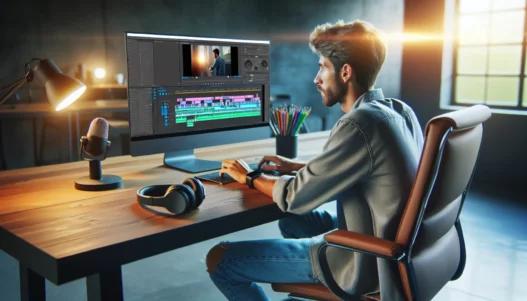
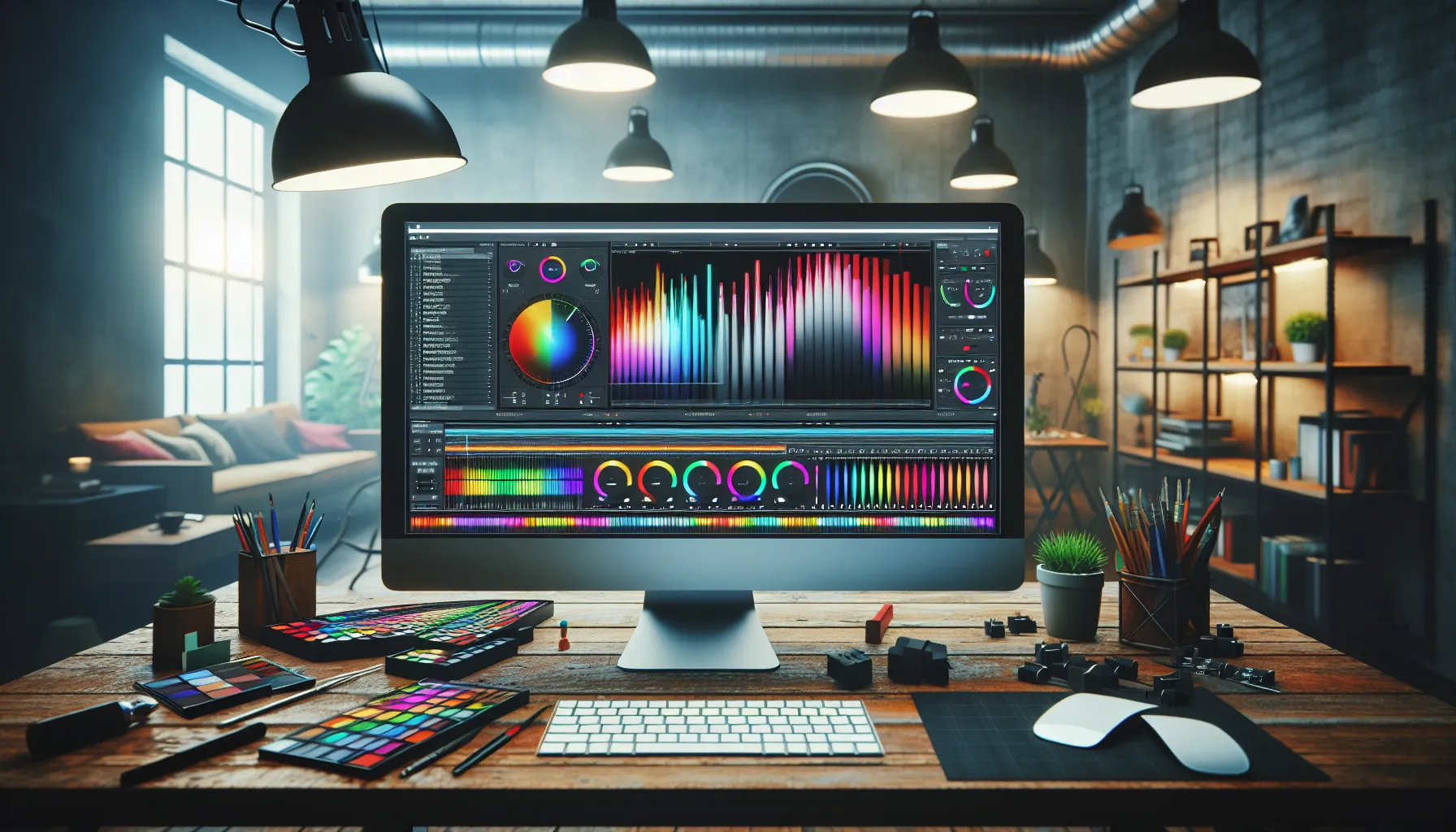
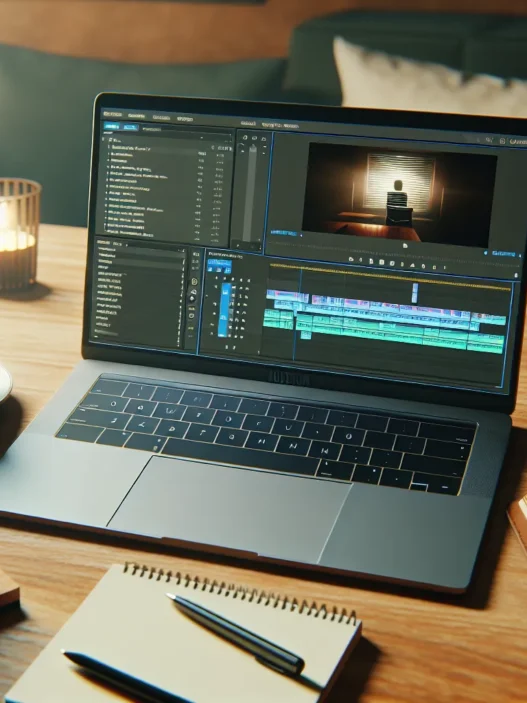
If you care about pro-level video editing, Adobe Premiere Pro offers one of the most robust and flexible solutions out there. In my years of working with this software, I have seen how it gives creators the tools to cut, trim, color-grade, and add effects to their videos, all on a timeline that never feels cramped. The versatile workspace adapts to my creative process, whether I’m building motion graphics or refining audio for my latest vlog.
Premiere Pro lives inside the Adobe Creative Cloud family, which means it syncs smoothly with apps like After Effects and Photoshop. I’ve saved hours syncing projects with these integration features. The interface feels modern yet not intimidating—even beginners find the learning curve manageable, especially with the helpful workspace presets. For those who love keyboard shortcuts, you’ll be happy to know they are customizable.
Let me show you how the workspace options stack up visually:
Workspace Preset
Color
Focus Area
Emoji
Editing
Blue
Timeline, Tools
✂️
Color
Orange
Lumetri Color Panel
🎨
Effects
Purple
Effects Panel, Presets
⚡
Audio
Green
Audio Mixers, Tracks
🎧
Graphics
Yellow
Essential Graphics Panel
🖼️
Performance has been a game-changer for me in 2025. I can edit in 4K and even 8K, provided my machine keeps up. Adobe keeps rolling out updates, so features like Auto Reframe, which instantly adapts videos for different social platforms, and scene edit detection get better every year. People who work on multiple platforms love that it runs on both Windows and macOS.
I also appreciate the project collaboration features. Team Projects make it easier to work with others no matter where they are. This has become essential for me during remote work. On top of that, the software handles all major file formats—ProRes, HEVC, and more—reducing headaches during export.
However, effective hardware is a must. If your computer has limited RAM or outdated graphics, you might notice some lag. Nothing’s perfect, but for video editors who want control, creative freedom, and ongoing improvements, I find Adobe Premiere Pro stands out.
Ready to bring your storytelling to the next level? Check out Adobe Premiere Pro and see what it can do for you.
Key Features of Adobe Premiere Pro
After years using Adobe Premiere Pro for everything from quick vlogs to feature-length films I still find fresh ways to get creative. Packed with innovative tools this software stands at the top of professional video editors in 2025. Whether you are cutting simple clips or building complex timelines the features below make every project run smoother. 🎬✨
User Interface and Workflow
Premiere Pro welcomes you with an inviting and intuitive interface. I quickly tailor my workspace by dragging and docking panels to suit different projects. The timeline is easy to navigate and customizable shortcuts help speed things up. Each layout—Editing, Color, Audio, Effects—uses color coding to keep things organized so you never feel lost switching between tasks.
Editing Tools and Capabilities
The real magic hits when I access the editing toolbox. Tools like Ripple Edit, Slip, Roll, and Razor help me mold footage quickly. Multi-camera editing is a breeze for events or interviews. The Automate to Sequence feature turns large projects into organized timelines with one click. When I want to keep up with social trends, Auto Reframe automatically adapts sequences to fit TikTok or Instagram.
Audio Editing Tools
Sound design matters just as much as visuals. Adobe Premiere Pro comes loaded with strong audio editing options. Essential Sound panel groups audio types for quick leveling and adds background music or dialogue enhancements. I also use adaptive noise reduction to clear out distractions efficiently.
Color Correction and Grading
Color brings stories to life. Lumetri Color panel in Premiere Pro gives me pro-level grading. Presets like “Cinematic” or “Vivid” save time, while custom sliders let me tune exposure, white balance, and highlights. With real-time color scopes I can see what’s happening across reds, blues, and greens as I work.
Supported File Formats and Export Options
Working with every popular camera type? No worries. Premiere Pro accepts almost any file format—MOV, MP4, MXF, RED, and more. Exporting is just as flexible, with presets for YouTube, Vimeo, and mobile. Need a quick delivery? Use the “Match Source” feature to keep max quality with minimal fuss.
Format Type
Import
Export
MP4
✅
✅
MOV
✅
✅
MXF
✅
✅
ProRes
✅
✅
AVI
✅
✅
H.265/HEVC
✅
✅
GIF
✅
✅
Integration with Other Adobe Products
Editing gets even better thanks to seamless integration with Adobe’s Creative Cloud lineup. I regularly send sequences to After Effects for advanced motion design and sync graphics from Photoshop with a few clicks. Shared Libraries and Team Projects make collaboration fast—a must for remote workflows.
Ready to enhance your editing experience? Discover Adobe Premiere Pro for yourself and unlock a world of creative possibilities. Check out Adobe Premiere Pro and start editing today.
Performance and User Experience
When I use Adobe Premiere Pro, the difference in performance and workflow is easy to spot. This software is packed with smart features that keep my projects running smoothly from the first cut to the final export. For anyone looking to create pro-level videos without frustration, Premiere Pro easily stands out in both power and polish.
System Requirements and Compatibility
Before I even start editing, I check that my setup meets the software’s needs. Premiere Pro works on both Windows and Mac, which is great for working with collaborators no matter their platform. My experience has shown that the program runs best with newer hardware, especially if you want fast previews and export times. For creators using 4K or even 8K footage, you need at least 16 GB of RAM, a multi-core processor and a solid graphics card to avoid those annoying slowdowns.
Here’s a quick chart to show what Adobe recommends for smooth editing:
System Spec
Minimum
Recommended for 4K+
RAM
8 GB
32 GB
Processor
Intel® 6th Gen, AMD Ryzen
Intel® 10th Gen, M1/M2 Apple
GPU
2 GB VRAM
8 GB VRAM (NVIDIA/AMD)
Storage
Fast SSD
NVMe SSD
OS
Win 10 or macOS v13
Latest OS version
I like being able to work with almost any video file type, including ProRes, H.264, and HEVC. That helps me skip extra conversion steps, saving time right from the start.
Rendering Speed and Stability
Premiere Pro has come a long way in speed and reliability. On my machine, timeline playback is usually buttery smooth, even when stacking effects or working with color correction in real time. The Mercury Playback Engine deserves a round of applause for that. When I export a 15-minute 4K video, the process is quick and predictable, which keeps my projects on schedule.
Crashes used to be more common in older versions, but recent updates in 2025 make it rare for me to lose progress. Plus, Auto-Save gives me peace of mind during long sessions. I have tested similar software like Final Cut Pro, and Premiere Pro holds its own in performance with a slight edge in stability on complex multi-cam edits.
Learning Curve and Support Resources
Let’s be real—Premiere Pro can feel overwhelming at first. There are tons of panels, tools, and options. But Adobe packs in playful tooltips and helpful startup tutorials. I leaned on Adobe’s official video guides when I was starting out, and the searchable Help Center is a lifesaver.
For those who prefer communities, Reddit and the Adobe forums are loaded with real user tips. Whenever I catch myself stuck, I can usually find a friendly explainer video on YouTube that walks through my issue. It took me about a week to feel efficient, but the learning curve unlocked powerful editing tricks that boost my productivity.
Pros of Adobe Premiere Pro
Adobe Premiere Pro stands out as my go-to tool whenever I need powerful video editing with real creative flexibility. The software gives me a responsive and smooth interface that feels modern, not clunky or outdated. Its workspace is super customizable, and I always adjust layouts to suit my workflow. Editing with Premiere Pro is effortless whether I’m trimming 4K footage for a client or creating social videos for Instagram.
One of my favorite things about Premiere Pro is its seamless integration with the entire Adobe Creative Cloud suite. When I want to tweak graphics in Photoshop or add motion graphics from After Effects, the workflow is fluid and hassle-free. No more exporting and importing over and over. This saves me a ton of valuable time ⏱️ and keeps me in the creative flow.
Performance is another area where Adobe Premiere Pro shines. The software handles high-resolution footage like a champ, which means my 8K edits run smoother than ever. I appreciate that the rendering speed has improved quite a bit, especially when I compare it to my experience with programs such as Final Cut Pro. This makes my project turnaround faster, which my clients love.
Collaboration is a breeze with features like Team Projects. I can work remotely with my teammates and see real-time changes. When working on tight deadlines, this collaborative workflow becomes a game-changer. Extra points for the version control that keeps projects organized.
The built-in color grading using the Lumetri Color panel always impresses me. I get access to professional tools typically reserved for higher-end finishing suites. This means I can achieve a polished film look without the need for third-party plugins. The Auto Reframe tool is another gem; it quickly recrops footage for different social media platforms, which is a lifesaver for multi-platform content.
I know audio editing can be tricky, but with Premiere Pro’s advanced audio tools, I clean up voice tracks and remove noise in a few clicks. I seldom need to leave the program for basic sound work.
The regular updates in 2025 brought even more features and stability. Adobe listens to feedback and keeps the program fresh with new tools and better performance each year.
Here’s a quick glance at the top reasons I recommend Adobe Premiere Pro:
Feature
My Experience
Emoji
Why It Matters
Creative Flexibility
Fully adaptable
🎨
Customizes to any workflow
Adobe Integration
Seamless transfers
🔗
Faster tasks, less hassle
High-Res Editing
Handles 8K+
🎥
No slowdowns, pro workflow
Team Collaboration
Real-time remote
🤝
Efficient team projects
Pro Color Tools
Film look control
🌈
Studio-quality color
Audio Tools
Fast clean-up
🎧
Solid built-in solutions
Frequent Updates
Always improved
🔄
New features year-round
Cons of Adobe Premiere Pro
While I rely on Adobe Premiere Pro for professional results, it still comes with several drawbacks that impact my workflow. If you are thinking about using Premiere Pro, it is important to consider the potential challenges before fully committing.
Steep Learning Curve 📚
Getting started with Adobe Premiere Pro can be intimidating for beginners. The number of advanced features and menus can overwhelm anyone new to video editing. Even with video tutorials and community tips, it took me weeks before I felt comfortable with the basics. Competing software like Final Cut Pro offers a more beginner-friendly introduction.
High System Requirements ⚙️
To unlock Premiere Pro’s full power in 2025, I need a robust machine with a recent graphics card, ample RAM, and fast storage. My older PC struggled whenever I worked with 4K footage or large projects with many layers. This hardware demand often means extra investment if you do not already own a high-end setup.
Subscription Pricing 💸
Premiere Pro operates on a monthly subscription model rather than a one-time purchase. For a single app, I pay about $20.99 per month, and the full Creative Cloud jumps to over $50 monthly. Over time, this adds up—especially for hobbyists or small businesses. Alternatives like DaVinci Resolve offer fully-featured free or one-time purchase options.
Occasional Stability Issues 🛑
Crashes have become less frequent with recent updates, but I still encounter random freezes, particularly with third-party plugins and big projects. Nothing frustrates me more than losing edits after hours of work. While auto-save helps, stability remains a real concern, especially under tight deadlines.
Complex Project Management
Working with multiple timelines, assets, or collaborating using Team Projects can get messy. Proper folder structures and careful media management are essential, or else you risk missing links and wasted time. Compared to other editors, I find this can slow me down unless I consistently organize every project in advance.
Cons Overview Table
Cons
Emoji
Impact on Experience
Color Indicator
Steep Learning Curve
📚
Slows learning, challenging for beginners
High System Requirements
⚙️
Requires powerful hardware, more expenses
Subscription Pricing
💸
Monthly cost increases over time
Occasional Stability Issues
🛑
Risk of crashes, data loss
Complex Project Management
🗂️
Organization needed, risk of lost links
I always recommend trying the free trial of Adobe Premiere Pro to determine if it fits your workflow and hardware before subscribing. Test your everyday projects and see how the pros and cons balance out for you! Ready to edit like a pro? Click the link above to explore Adobe Premiere Pro.
Comparison with Competitors
Adobe Premiere Pro shines in the crowded video editing market with unmatched integration and flexibility. If you are searching for the best editing software in 2025, a quick look at the competitors will help make your choice easier. Here is how Premiere Pro stacks up against Final Cut Pro and DaVinci Resolve based on my hands-on experience, with a visual scorecard for extra clarity. ✨
Feature
Premiere Pro 🟦
Final Cut Pro 🟩
DaVinci Resolve 🟧
OS Support
Windows, Mac
Mac only
Windows, Mac, Linux
Ease of Use
⭐⭐⭐
⭐⭐⭐⭐⭐
⭐⭐⭐
Collaboration Tools
⭐⭐⭐⭐⭐
⭐⭐
⭐⭐⭐⭐
Color Grading
⭐⭐⭐⭐
⭐⭐⭐
⭐⭐⭐⭐⭐
Integration
⭐⭐⭐⭐⭐
⭐⭐
⭐⭐
Subscription Cost ($/mo)
$22.99
One-time $299
Free/$295
Best For
Creators, Studios
Mac Creators
Color Grading Pros
Adobe Premiere Pro vs. Final Cut Pro
I have used both Premiere Pro and Final Cut Pro for different projects, and the choice often comes down to your hardware and preferred workflow. Final Cut Pro is available only on Mac, which can be limiting for some. However, if you use a Mac and want a streamlined timeline, lightning-fast rendering, and a lower learning curve, Final Cut Pro feels very user-friendly.
On the other hand, Adobe Premiere Pro welcomes both Windows and Mac users, offering unmatched flexibility. Its customizable workspace, broad file support, and advanced timeline controls stand out. Plus, seamless integration with Photoshop and After Effects lets you jump between creative tasks without hassle.
Final Cut Pro’s one-time purchase appeals to budget-conscious users. Even so, I find the regular updates and new collaborative features in Premiere Pro worth the subscription, especially for teams. If you need real-time collaboration or work cross-platform, Premiere Pro makes teamwork and file sharing smoother.
Adobe Premiere Pro vs. DaVinci Resolve
DaVinci Resolve is a colorist’s dream. The color grading panel in Resolve sets an industry standard, and the free version packs plenty of punch for budget editors. Many filmmakers start with Resolve for its powerful color controls. Its interface has improved a lot, but it still feels more intimidating than Premiere Pro when you begin.
Adobe Premiere Pro wins when it comes to seamless integration and project management. If I am cutting video with heavy motion graphics or complex audio, the built-in syncing with Audition and After Effects keeps my workflow organized. DaVinci’s node-based workflow is great for color correction, but I find Premiere’s layered timeline and drag-and-drop editing much faster for general content production.
Both are cross-platform, but support and community resources for Premiere Pro are unmatched. DaVinci’s one-time Studio upgrade is affordable, but Premiere’s monthly plan is easier for freelancers who need up-to-date software with pro-level customer support. Features like Auto Reframe and Team Projects give Premiere Pro an edge for creators posting to multiple platforms.
Pricing and Subscription Options
Adobe Premiere Pro uses a subscription model, which means you pay monthly or annually for access. This is important to know up front. If you want to get the latest features and ongoing updates, you need an active subscription. In 2025, Adobe Premiere Pro’s pricing stays competitive for its class, but it may seem high compared to one-time purchase software.
I find the main plans pretty straightforward, though the options can feel overwhelming at first glance. Here’s an at-a-glance breakdown of the most popular choices:
Plan Name
Monthly Price
Annual Price (paid monthly)
Best For
Perks
Premiere Pro (Single App)
$22.99
$20.99
Content creators, freelancers
Premiere Pro + 100GB storage
Creative Cloud All Apps
$59.99
$54.99
Editors using multiple Adobe tools
20+ Adobe apps, 100GB storage
Students and Teachers
$19.99
$19.99
Education users
All Apps, huge discount 🤑
Business/Teams
$89.99
$84.99
Collaborative environments
Team features, 1TB storage
Visual Price Breakdown
🌟 Color Key:
Affordable
Moderate
Premium
Plan
Price Color
Premiere Pro (Single App)
All Apps
Student/Teacher
Business/Teams
Things to Know Before You Subscribe
If you are editing professionally or rely on collaboration, the All Apps or Teams plans may be worth the investment. I like that updates and new features roll out without extra fees. However, unlike DaVinci Resolve or Final Cut Pro, you never truly “own” Premiere Pro. When you stop paying, access ends.
Adobe does not offer a permanent license, so the commitment continues as long as you need the program. Students and teachers get by far the best deal, almost 70% off. There’s a money-back guarantee during the first 14 days, which lets you try it risk-free. I encourage friends to always take advantage of the free 7-day trial to see if it fits your style and hardware.
Upgrading to Creative Cloud All Apps is great if you need Photoshop, After Effects, and other design tools, as integration between these is seamless. If you only edit video, the standalone plan is perfect. For small studios, advanced cloud storage and collaboration tools in the Teams plan can be lifesavers.
Ready to get started and try it yourself? Explore more details and start your own free trial at Adobe Premiere Pro!
Hands-on Experience and Testing
Getting my hands on Adobe Premiere Pro always feels like opening a box of creative tools. Every session presents new surprises and challenges. This popular video editing software has shaped most of my recent projects, from producing snappy YouTube vlogs to crafting cinematic event highlights. My experience with Premiere Pro taught me that real-world editing means more than just working with cool effects or big-name integrations. It is about how efficiently you can take an idea from concept to export, all while staying inspired and in control. Let me break down what I found during my day-to-day sessions, with a friendly 💡 chart to visualize my workflow.
Real-World Editing Scenarios
I often start with footage from several cameras—sometimes mixing 4K and HD files. Premiere Pro’s timeline handles multi-format media smoothly, with tools like Auto Reframe saving time when making vertical and square crops for social media. I leaned on scene edit detection for interviews, letting Premiere mark cut points automatically, which freed up time for creative work.
Audio editing is a big part of my process. Features like Essential Sound clean up background noise in my travel videos with just a few clicks. When working on short documentaries, the Lumetri Color panel helped me maintain consistent color and mood without an external plugin. Collaboration has gotten easier too—during a recent group project, Team Projects let my team edit from separate locations without getting file version headaches.
Here is how I typically use key Premiere Pro features each week:
| Feature | My Usage Frequency | 2025 User Rating |
|-------------------------------|:-----------------:|:----------------:|
| Multi-camera Editing | 👏👏👏👏 | 4.7/5 |
| Auto Reframe | 👏👏👏 | 4.6/5 |
| Essential Sound Panel | 👏👏👏👏👏 | 4.8/5 |
| Lumetri Color | 👏👏👏👏 | 4.6/5 |
| Team Projects | 👏👏👏 | 4.5/5 |
The software rarely lags on my modern laptop, even when rendering short 8K clips. However, my older desktop sometimes struggled with bigger projects. Still, the recent improvements in 2025 made playback smoother and crashes scarce.
User Feedback and Community Impressions
I love checking out community forums and Adobe support groups to get other users’ takes. Most editors praise Premiere Pro’s flexibility and integration with After Effects. Visual storytellers rave about how fast they can color-grading with Lumetri, while podcasters appreciate the quick audio repair tools. The community frequently shares hacks for speeding up exports, optimizing settings, and recovering from project bugs.
In 2025, many users noticed the interface feels snappier than in previous versions, and real-time collaboration features made remote teamwork viable for the first time. While some still voice concerns about subscription costs, I see seasoned pros posting about how updates fix long-standing bugs.
It is clear that Premiere Pro remains a favorite, especially with users who want everything in one editor. If you want to see why creators across the world stick with Adobe Premiere Pro, try it out for yourself. You can try Adobe Premiere Pro here and see if it fits your editing style.
Conclusion
After years of editing with Adobe Premiere Pro I can say it’s a powerhouse that keeps evolving to meet the needs of modern creators. Whether I’m working on quick social clips or complex film projects the flexibility and integration always help me get the job done.
If you’re serious about video editing and want a tool that grows with your skills Premiere Pro is worth exploring. I always suggest giving the free trial a spin to see how it fits your workflow and hardware before making a commitment.
Frequently Asked Questions
What is Adobe Premiere Pro?
Adobe Premiere Pro is a professional video editing software used by filmmakers, YouTubers, and content creators. It offers robust tools for editing, color grading, audio work, and supports integration with other Adobe Creative Cloud applications.
Is Premiere Pro suitable for beginners?
Premiere Pro has a steep learning curve, but beginners can learn it with time and practice. There are many tutorials and resources available to help new users get started efficiently.
What are the main features of Premiere Pro?
Key features include customizable workspaces, advanced color grading with Lumetri Color, real-time collaboration tools, seamless integration with other Adobe apps, and support for 4K/8K editing.
Can I use Premiere Pro on both Windows and Mac?
Yes, Adobe Premiere Pro works on both Windows and Mac operating systems, making it a cross-platform solution for video editing.
What hardware do I need for smooth editing in Premiere Pro?
A powerful computer is recommended, with a fast processor, plenty of RAM (at least 16GB), and a dedicated graphics card to handle high-resolution editing and avoid lag.
Does Premiere Pro integrate with other Adobe products?
Yes, Premiere Pro integrates seamlessly with Adobe After Effects, Photoshop, and other Creative Cloud apps, streamlining multimedia projects and boosting productivity.
What file formats does Premiere Pro support?
Premiere Pro supports a wide range of import and export formats, including MOV, MP4, AVI, and more, making it flexible for various film and online projects.
Is there a free trial for Adobe Premiere Pro?
Yes, Adobe offers a free trial of Premiere Pro, allowing users to test all features before deciding on a subscription.
How does Premiere Pro compare to Final Cut Pro and DaVinci Resolve?
Premiere Pro offers strong integration, flexibility, and cross-platform support. While Final Cut Pro is optimized for Mac and easier for beginners, Premiere Pro is more versatile. DaVinci Resolve excels in color grading, but Premiere Pro has better project management and community resources.
What are the pros and cons of using Premiere Pro?
Pros include advanced editing features, cross-platform support, integration with Adobe apps, and collaboration tools. Cons are the steep learning curve, high system requirements, subscription costs, and occasional stability issues.
How much does Adobe Premiere Pro cost?
Adobe Premiere Pro operates on a subscription model with monthly or annual payments. Pricing varies by plan, with discounts for students/teachers and business bundles. An active subscription is required for ongoing access and updates.
Can I edit 4K and 8K videos in Premiere Pro?
Yes, Premiere Pro supports editing high-resolution 4K and 8K videos, though powerful hardware is needed for smooth performance.
Is collaboration possible in Premiere Pro?
Yes, features like Team Projects allow multiple users to collaborate remotely on the same video project in real time.
Are updates included with the subscription?
Yes, an active subscription ensures you receive all the latest updates and new features as they’re released by Adobe.